Source: https://developers.woosmap.com/products/indoor-api/get-started/
> For clean Markdown of any page, append `.md` to the page URL.
> For a complete documentation index, see https://developers.woosmap.com/llms.txt
# Get Started
## Try It Now - Demo Playground
The fastest way to explore the Indoor API is to create a demo project directly in the Woosmap Console. No venue data or setup required!
1. Log in to the [Woosmap Console](https://console.woosmap.com)
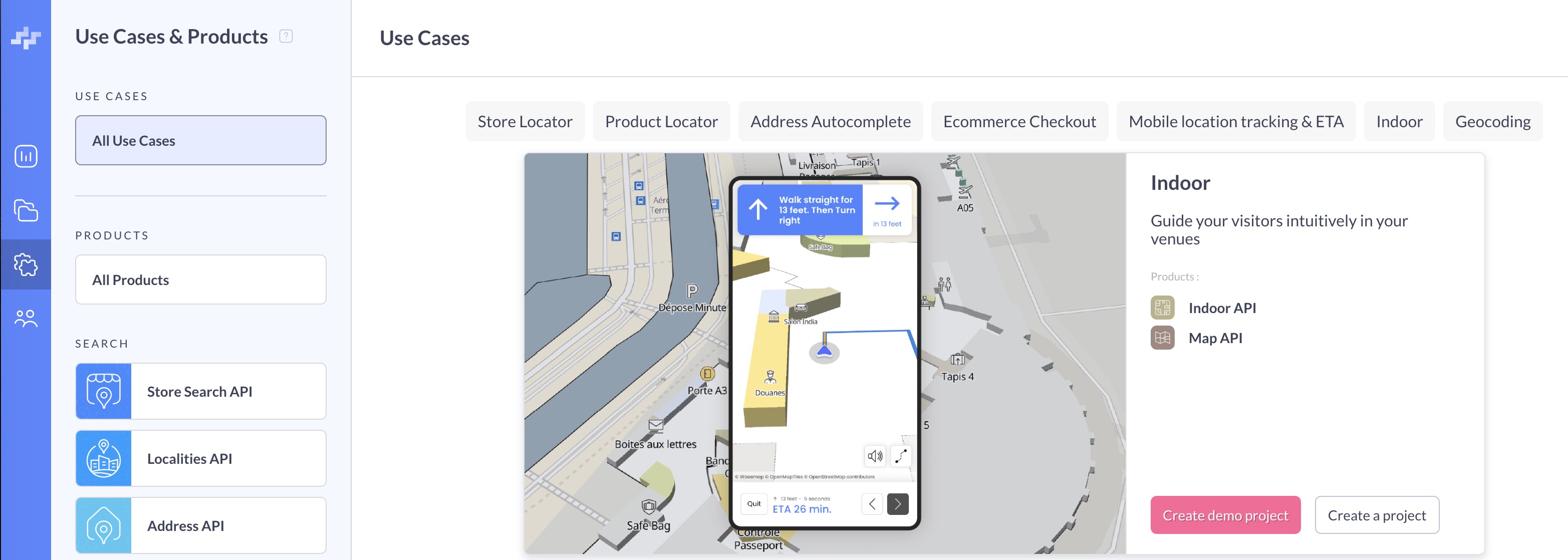
2. Navigate to **Use Cases & Products** in the left sidebar
3. Select the **Indoor** tab from the Use Cases options
4. Click the **Create demo project** button
This will automatically set up a new project with a pre-configured indoor map that you can use as a playground to explore Indoor API features, including indoor navigation, POI search, and wayfinding capabilities.
If the **Create demo project** button is not visible, you may have already created a demo. Look for the **“Indoor Demo”** project in your workspace.
## Quick Start Example
Here’s a simple example to display an indoor map using the Map JS API with the demo venue:
https://demo.woosmap.com/js-samples/samples/indoor-map-simple/app/dist/
[](https://demo.woosmap.com/js-samples/samples/indoor-map-simple/highlight/highlight.html "Open in new tab with highlighted code")
Try sample
- [CodeSandbox](https://codesandbox.io/p/devbox/github/woosmap/js-samples/tree/master/dist/samples/indoor-map-simple/app?file=index.ts)
- [JsFiddle](https://jsfiddle.net/gh/get/library/pure/woosmap/js-samples/tree/master/dist/samples/indoor-map-simple/jsfiddle)
- [Clone on Github](https://github.com/Woosmap/js-samples/tree/sample/indoor-map-simple)
```typescript
let map: woosmap.map.Map;
function initMap() {
map = new window.woosmap.map.Map(
document.getElementById("map") as HTMLElement,
{
center: { lat: 43.6066, lng: 3.9218 },
zoom: 19.5,
},
);
const indoorRenderer = new woosmap.map.IndoorRenderer({
venue: "wgs_doc",
defaultFloor: 3,
});
// Indoor event that is triggered when the indoor venue is loaded.
indoorRenderer.addListener(
"indoor_venue_loaded",
(venue: woosmap.map.Venue) => {
console.log(venue);
hideLoader();
},
);
indoorRenderer.setMap(map);
}
const hideLoader = () => {
(document.querySelector(".progress") as HTMLElement).remove();
};
declare global {
interface Window {
initMap: () => void;
}
}
window.initMap = initMap;
```
```javascript
let map;
function initMap() {
map = new window.woosmap.map.Map(document.getElementById("map"), {
center: { lat: 43.6066, lng: 3.9218 },
zoom: 19.5,
});
const indoorRenderer = new woosmap.map.IndoorRenderer({
venue: "wgs_doc",
defaultFloor: 3,
});
// Indoor event that is triggered when the indoor venue is loaded.
indoorRenderer.addListener("indoor_venue_loaded", (venue) => {
console.log(venue);
hideLoader();
});
indoorRenderer.setMap(map);
}
const hideLoader = () => {
document.querySelector(".progress").remove();
};
window.initMap = initMap;
```
```css
/*
* Always set the map height explicitly to define the size of the div element
* that contains the map.
*/
#map {
height: 100%;
}
/*
* Optional: Makes the sample page fill the window.
*/
html,
body {
height: 100%;
margin: 0;
padding: 0;
font-family: ui-sans-serif, system-ui, -apple-system, BlinkMacSystemFont, Segoe UI, Roboto, Helvetica Neue, Arial, Noto Sans, sans-serif, Apple Color Emoji, Segoe UI Emoji, Segoe UI Symbol, Noto Color Emoji;
}
#app {
height: 100%;
}
.progress {
position: fixed;
top: 0;
left: 0;
width: 100%;
height: 100%;
background: white;
display: flex;
justify-content: center;
align-items: center;
z-index: 9999;
}
.progress .spinner {
border: 10px solid #f3f3f3;
border-top: 10px solid #444444;
border-radius: 50%;
width: 70px;
height: 70px;
animation: spin 1s linear infinite;
}
```
```html
Indoor Map Renderer
```
## Sample Code
Try these interactive examples:
- [CodeSandbox Demo](https://codesandbox.io/p/devbox/github/woosmap/js-samples/tree/master/dist/samples/indoor-widget-simple/app)
- [JSFiddle Example](https://jsfiddle.net/gh/get/library/pure/woosmap/js-samples/tree/master/dist/samples/indoor-widget-simple/jsfiddle)
- [GitHub Samples](https://github.com/Woosmap/js-samples/tree/sample/indoor-widget-simple)
- [React Native - @woosmap/react-native-woosmap](/products/mobile/react-native/indoor/)
- [Flutter - woosmap\_flutter](/products/mobile/flutter/indoor/)
## Integration Options
The Indoor API can be integrated in several ways:
1. **Indoor JS Widget** : Pre-built UI component for quick integration
2. **Map JS API** : Recommended for web applications with the `IndoorRenderer` and `IndoorService` classes
3. **Mobile SDKs** : Native libraries for iOS (Swift), Android (Kotlin/Java), React Native, and Flutter
4. **REST API** : Direct HTTP requests for maximum flexibility
## Next Steps
Once you’ve explored the demo, see [Using the API with Your Own Venues](/products/indoor-api/guides/using-the-api/) for steps on obtaining credentials, authenticating requests, and connecting to your own venue data.