Source: https://developers.woosmap.com/products/localities/guides/widget-guide/
> For clean Markdown of any page, append `.md` to the page URL.
> For a complete documentation index, see https://developers.woosmap.com/llms.txt
# Localities Widget Guide
The **Woosmap Localities Widget** lets you easily embed a search box for localities, postcodes, addresses, and other places in your website. It’s fast to set up and highly customizable.
## Sample Usage
This example shows how to integrate the Localities Widget to search for cities and postal codes matching user input.
https://demo.woosmap.com/js-samples/samples/localities-js-widget/app/dist/
[](https://demo.woosmap.com/js-samples/samples/localities-js-widget/highlight/highlight.html "Open in new tab with highlighted code")
Try sample
- [CodeSandbox](https://codesandbox.io/p/devbox/github/woosmap/js-samples/tree/master/dist/samples/localities-js-widget/app?file=index.ts)
- [JsFiddle](https://jsfiddle.net/gh/get/library/pure/woosmap/js-samples/tree/master/dist/samples/localities-js-widget/jsfiddle)
- [Clone on Github](https://github.com/Woosmap/js-samples/tree/sample/localities-js-widget)
```typescript
function init(): void {
const responseElement = document.getElementById(
"response-container",
) as HTMLElement;
//@ts-ignore
const localitiesWidget = new window.woosmap.localities.Autocomplete(
"autocomplete-input",
{},
);
localitiesWidget.addListener("selected_suggestion", () => {
const selectedLocality = localitiesWidget.getSelectedSuggestionDetails();
if (responseElement) {
responseElement.innerHTML = `${JSON.stringify(selectedLocality, null, 2)}`;
responseElement.style.display = "block";
}
});
}
document.addEventListener("DOMContentLoaded", () => {
init();
});
declare global {
interface Window {
// currently, the localities JS Widget typings are not exported, so we use `any` here
//@ts-ignore
woosmap: {
localities: {
Autocomplete: new (inputId: string, customConfig: any) => any;
};
};
}
}
```
```javascript
function init() {
const responseElement = document.getElementById("response-container");
//@ts-ignore
const localitiesWidget = new window.woosmap.localities.Autocomplete(
"autocomplete-input",
{},
);
localitiesWidget.addListener("selected_suggestion", () => {
const selectedLocality = localitiesWidget.getSelectedSuggestionDetails();
if (responseElement) {
responseElement.innerHTML = `${JSON.stringify(selectedLocality, null, 2)}`;
responseElement.style.display = "block";
}
});
}
document.addEventListener("DOMContentLoaded", () => {
init();
});
```
```css
/*
* Always set the map height explicitly to define the size of the div element
* that contains the map.
*/
#map {
height: 100%;
}
/*
* Optional: Makes the sample page fill the window.
*/
html,
body {
height: 100%;
margin: 0;
padding: 0;
font-family: ui-sans-serif, system-ui, -apple-system, BlinkMacSystemFont, Segoe UI, Roboto, Helvetica Neue, Arial, Noto Sans, sans-serif, Apple Color Emoji, Segoe UI Emoji, Segoe UI Symbol, Noto Color Emoji;
}
body {
background-color: #eee;
overflow-y: hidden;
}
#autocomplete-container {
display: flex;
position: absolute;
top: 10px;
left: 10px;
z-index: 1;
box-shadow: 0 2px 4px rgba(0, 0, 0, 0.2), 0 -1px 0px rgba(0, 0, 0, 0.02);
background: #fff;
max-width: 320px;
width: 100%;
height: 42px;
border: none;
box-sizing: border-box;
align-items: center;
cursor: text;
font-size: 15px;
}
#autocomplete-input {
box-sizing: border-box;
height: 40px;
line-height: 24px;
vertical-align: top;
transition-property: color;
transition-duration: 0.3s;
width: 100%;
padding: 0 12px;
text-overflow: ellipsis;
background: transparent;
border-radius: 0;
border: 0;
margin: 0;
outline: 0;
overflow: visible;
appearance: textfield;
font-size: 100%;
}
.localities-input-wrapper, .localities-input-container {
width: 100%;
}
pre {
display: none;
margin: 70px 10px;
max-height: calc(100vh - 110px);
padding: 10px;
border: 3px solid #c8c8c8;
background-color: white;
border-radius: 8px;
white-space: pre-wrap;
overflow-x: auto;
font-family: Consolas, "Andale Mono WT", "Andale Mono", "Lucida Console", "Lucida Sans Typewriter", "DejaVu Sans Mono", "Bitstream Vera Sans Mono", "Liberation Mono", "Nimbus Mono L", Monaco, "Courier New", Courier, monospace;
}
```
```html
Localities JS Widget
```
* * *
## Quick Start Checklist
1. **Add the Widget Script and CSS** to your HTML (replace with your API key):
```html
```
2. **Create an input element** with a unique ID:
```html
```
3. **Add basic CSS for layout and response display** (optional):
```css
#autocomplete-input {
width: 100%;
padding: 8px;
font-size: 16px;
border: 1px solid #ccc;
border-radius: 4px;
}
#response-container {
background: #f9f9f9;
border: 1px solid #eee;
padding: 12px;
font-size: 14px;
color: #333;
border-radius: 4px;
margin-top: 12px;
display: none;
}
```
4. **Instantiate the Widget in your JS:**
```javascript
function init() {
const responseElement = document.getElementById("response-container");
const localitiesWidget = new window.woosmap.localities.Autocomplete(
"autocomplete-input",
{},
);
localitiesWidget.addListener("selected_suggestion", () => {
const selectedLocality = localitiesWidget.getSelectedSuggestionDetails();
if (responseElement) {
responseElement.innerHTML = `${JSON.stringify(selectedLocality, null, 2)}`;
responseElement.style.display = "block";
}
});
}
document.addEventListener("DOMContentLoaded", () => {
init();
});
```
## Settings Overview
Please refer to the [Localities Reference](/products/localities/reference/libraries/js/2.0/) for all configurable settings. Below is a summary of main parameters (all optional):
### minLength
Localities search triggers when the number of typed chars is \>= minLength. Defaults to 1. `"minLength": 3`
### types
Requested suggestion type: ‘locality’, ‘postal\_code’, ‘address’, ‘admin\_level’, ‘country’, ‘train\_station’, ‘metro\_station’, ‘shopping’, ‘airport’, ‘museum’, ‘zoo’, ‘amusement\_park’, ‘art\_gallery’, ‘tourist\_attraction’. When omitted, returns localities + postcodes. `"types": "locality"`
### data
Default config returns postcodes for most Western Europe countries. “advanced” returns postcodes for any country. Defaults to ‘standard’. `"data": "advanced"`
### extended
Allows refined search over locality names that share the same postal code.
### components
Restricts results to a single country or array of countries (ISO 3166-1 Alpha-2 codes, case insensitive). If your use case is specific to certain countries, always use this parameter for more accurate suggestions.
```javascript
"components": { "country": "es" }
"components": { "country": ["fr", "es"] }
```
### location
Adds a bias to autocomplete results. Specify as a LatLngLiteral object (`{lat: 43.4, lng: 3.883}`) or a string (`43.4,3.883`). **Tip:** Use the `location` parameter to prioritize results near your users. For example, for Spain, set `{lat: 40.4168, lng: -3.7038}` for Madrid.
### Translations Settings
Display results in different languages. Set the `language` parameter in your config (e.g. `{language: "en"}`).
### Multiple Settings Example
```javascript
{
"minimumInputLength": 3,
"types": ["locality", "postal_code"],
"data": "advanced",
"components": { "country": ["fr", "es"] },
"language": "zh"
}
```
## Customizing Suggestions & Appearance
### Custom Description
Use the `custom_description` parameter to change the format of autocomplete suggestions.
https://demo.woosmap.com/js-samples/samples/localities-js-widget-custom-desc/app/dist/
[](https://demo.woosmap.com/js-samples/samples/localities-js-widget-custom-desc/highlight/highlight.html "Open in new tab with highlighted code")
Try sample
- [CodeSandbox](https://codesandbox.io/p/devbox/github/woosmap/js-samples/tree/master/dist/samples/localities-js-widget-custom-desc/app?file=index.ts)
- [JsFiddle](https://jsfiddle.net/gh/get/library/pure/woosmap/js-samples/tree/master/dist/samples/localities-js-widget-custom-desc/jsfiddle)
- [Clone on Github](https://github.com/Woosmap/js-samples/tree/sample/localities-js-widget-custom-desc)
### Main Widget CSS Classes
Use these classes to customize the widget and harmonize it with your UI:
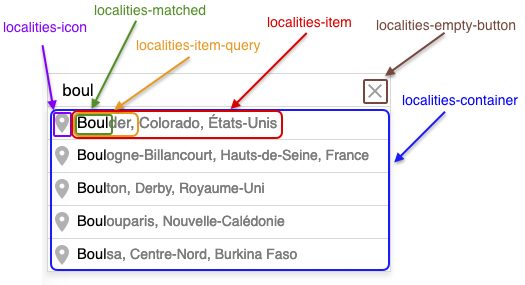
Keyboard-selected result line will receive an additional `localities-item-selected` class.
### Default Localities Widget Styles
Override these styles to customize your widget display:
```css
.localities-container { color: #FFF; box-shadow: 0 4px 5px rgba(0,0,0,0.1) }
.localities-item { color: #7B7B7B; }
.localities-item-query { color: #7B7B7B; }
.localities-icon { background-color: #b2b2b2; }
.localities-matched { color: #000; }
.localities-input { color: #000; border-radius: 0; }
.localities-item-selected, .localities-item:hover { background-color: #edf4f9; }
.localities-item-selected .localities-icon, .localities-item:hover .localities-icon { background-color: #5586ff; }
```
* * *
## Troubleshooting & Best Practices
- **API Key Issues:** Double-check your API key and domain restrictions in the Woosmap Console.
- **Country Restriction:** Always set the `components.country` parameter for more relevant results.
- **Styling:** Use your own CSS to match the widget to your site’s look and feel.
- **Accessibility:** Ensure your input element is accessible (label, ARIA attributes).
- **Performance:** Use `minLength` to avoid unnecessary API calls.
* * *
## Resources
- [Localities Widget Reference](/products/localities/reference/libraries/widget/2.0/)
- [Autocomplete API Docs](/products/localities/features/autocomplete/)
- [Sample Integrations](/products/localities/guides/widget-guide/#sample-usage)
- [Woosmap Console](https://console.woosmap.com/)