Source: https://developers.woosmap.com/products/map-api/guides/display-stores-overlay/
> For clean Markdown of any page, append `.md` to the page URL.
> For a complete documentation index, see https://developers.woosmap.com/llms.txt
# Display your Stores
You are able to natively display your assets hosted in your Woosmap project by using the [StoresOverlay JavaScript class](/products/map-api/reference/1.4/#woosmap.map.StoresOverlay).
## Overview
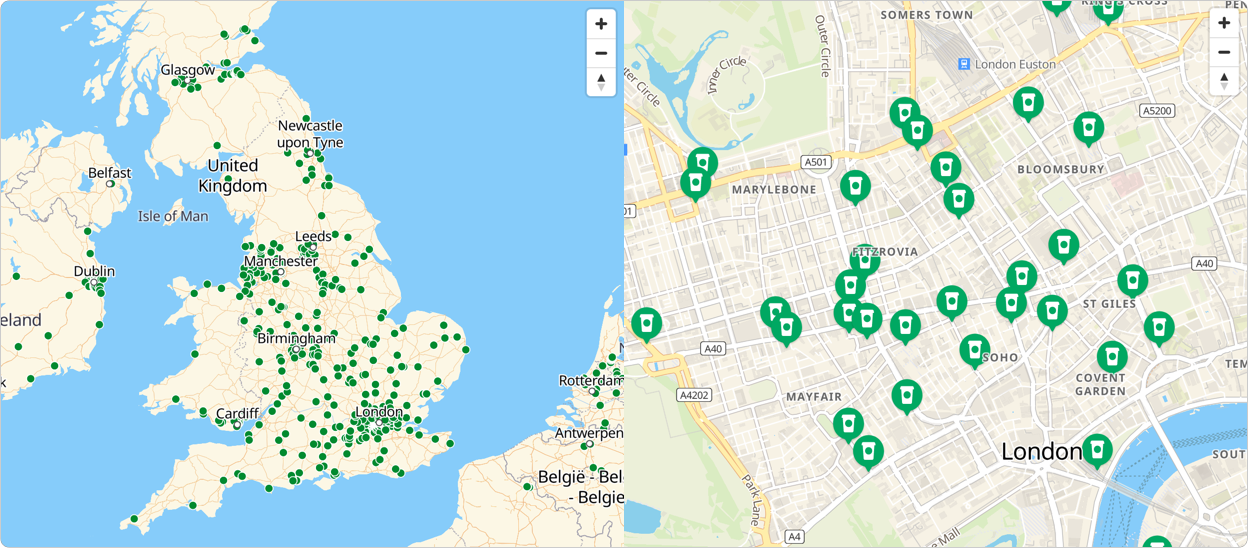
To ensure maximum readability and navigation, your data are displayed combining tiled images and markers. Tiled images are useful to render large amount of assets or high store density. This view makes the map displayed faster and provide a clean view. Markers are relevant to render branded pictogram after a specified level of zoom (breakpoint).
Assets are retrieved based on the **Public API Key** attached to your Woosmap Project and set when loading the Map Javascript API
```html
```
Here is a basic sample of starbucks coffee shops displayed over a Woosmap Map centered on UK.
https://demo.woosmap.com/js-samples/samples/stores-overlay/app/dist/
[](https://demo.woosmap.com/js-samples/samples/stores-overlay/highlight/highlight.html "Open in new tab with highlighted code")
Try sample
- [CodeSandbox](https://codesandbox.io/p/devbox/github/woosmap/js-samples/tree/master/dist/samples/stores-overlay/app?file=index.ts)
- [JsFiddle](https://jsfiddle.net/gh/get/library/pure/woosmap/js-samples/tree/master/dist/samples/stores-overlay/jsfiddle)
- [Clone on Github](https://github.com/Woosmap/js-samples/tree/sample/stores-overlay)
```typescript
function initMap(): void {
const center: woosmap.map.LatLngLiteral = { lat: 51.52, lng: -0.13 };
const style: woosmap.map.Style = {
breakPoint: 14,
rules: [],
default: {
color: "#008a2f",
size: 8,
minSize: 1,
icon: {
url: "https://images.woosmap.com/starbucks-marker.svg",
scaledSize: {
height: 40,
width: 34,
},
},
selectedIcon: {
url: "https://images.woosmap.com/starbucks-marker-selected.svg",
scaledSize: {
height: 50,
width: 43,
},
},
},
};
const map = new woosmap.map.Map(
document.getElementById("map") as HTMLElement,
{
zoom: 4,
center: center,
},
);
const storesOverlay = new woosmap.map.StoresOverlay(style);
storesOverlay.setMap(map);
}
declare global {
interface Window {
initMap: () => void;
}
}
window.initMap = initMap;
```
```javascript
function initMap() {
const center = { lat: 51.52, lng: -0.13 };
const style = {
breakPoint: 14,
rules: [],
default: {
color: "#008a2f",
size: 8,
minSize: 1,
icon: {
url: "https://images.woosmap.com/starbucks-marker.svg",
scaledSize: {
height: 40,
width: 34,
},
},
selectedIcon: {
url: "https://images.woosmap.com/starbucks-marker-selected.svg",
scaledSize: {
height: 50,
width: 43,
},
},
},
};
const map = new woosmap.map.Map(document.getElementById("map"), {
zoom: 4,
center: center,
});
const storesOverlay = new woosmap.map.StoresOverlay(style);
storesOverlay.setMap(map);
}
window.initMap = initMap;
```
```css
/*
* Always set the map height explicitly to define the size of the div element
* that contains the map.
*/
#map {
height: 100%;
}
/*
* Optional: Makes the sample page fill the window.
*/
html,
body {
height: 100%;
margin: 0;
padding: 0;
font-family: ui-sans-serif, system-ui, -apple-system, BlinkMacSystemFont, Segoe UI, Roboto, Helvetica Neue, Arial, Noto Sans, sans-serif, Apple Color Emoji, Segoe UI Emoji, Segoe UI Symbol, Noto Color Emoji;
}
```
```html
Stores Overlay
```
## Add a StoresOverlay
To add your stores to a map, you need to create a new `woosmap.map.StoresOverlay` with a `Style` object parameter. Then, call `setMap()`, passing it the map object on which to display the overlay. Similarly, to hide your stores, call `setMap()`, passing null.
```javascript
const map = new woosmap.map.Map(document.getElementById("map"), {
zoom: 4,
center: center,
});
const storesOverlay = new woosmap.map.StoresOverlay(style);
storesOverlay.setMap(map);
```
## Style your StoresOverlay
The `Style` object is **mandatory**. It lets you define how is render your stores over the map.
With the Tiled images, Stores are displayed as colored dots. Therefore, you have to set the `color` (Hexadecimal color value) and a size range - the dots size depends on the zoom level and vary based on `size` and `minSize` attributes (in pixel).
For Markers icons, the display support default marker (`icon` property) and selected markers (`selectedIcon` property). For both markers, specify the `url` of the desired image and, optionally, add properties to control the behaviour of the marker:
- `scaledSize` corresponding to the size of the entire image after scaling. Use this property to shrink an image.
- `anchor` where the icon’s hotspot should be offset. By default, the anchor is located along the center point of the bottom of the image.
```javascript
const style = {
breakPoint: 14,
rules: [],
default: {
color: "#008a2f",
size: 8,
minSize: 1,
icon: {
url: "https://images.woosmap.com/starbucks-marker.svg",
scaledSize: {
height: 40,
width: 34,
},
},
selectedIcon: {
url: "https://images.woosmap.com/starbucks-marker-selected.svg",
scaledSize: {
height: 50,
width: 43,
},
},
},
};
```
Along with the default styles, you can set custom dot colors and icons for given type values in the `rules` array. Let’s say you would like to enlighten your Click & Collect Stores on the Map.
Assuming you have previously updated your desired store data with the field `type:[click&collect]`, the style would be similar to this:
```javascript
const style = {
default: {...},
rules: [{
color: "#FF5221",
type: 'click&collect',
icon: {
url: '/path_to_image/click_and_collect_marker.png',
},
selectedIcon: {
url: '/path_to_image/selected_click_and_collect_marker.png'
}
}]
}
```
## Store Click Event
The Map triggers a special event when a user click on a marker belonging to the StoresOverlay Layer. You can listen to this event to get the store object and process the associated attributes. Returned Store JSON Object comes directly from the [Stores API](/api-reference/data-api/post-stores/).
In the below example, clicking on a store marker will display the name, address and phone number of given coffee shop while displaying the selected marker icon.
https://demo.woosmap.com/js-samples/samples/stores-overlay-click-event/app/dist/
[](https://demo.woosmap.com/js-samples/samples/stores-overlay-click-event/highlight/highlight.html "Open in new tab with highlighted code")
Try sample
- [CodeSandbox](https://codesandbox.io/p/devbox/github/woosmap/js-samples/tree/master/dist/samples/stores-overlay-click-event/app?file=index.ts)
- [JsFiddle](https://jsfiddle.net/gh/get/library/pure/woosmap/js-samples/tree/master/dist/samples/stores-overlay-click-event/jsfiddle)
- [Clone on Github](https://github.com/Woosmap/js-samples/tree/sample/stores-overlay-click-event)
```typescript
// Configure the click listener.
window.woosmap.map.event.addListener(
map,
"store_selected",
(storeGeoJSON: woosmap.map.stores.StoreResponse) => {
const getAddress = (store: woosmap.map.stores.Store): string =>
`${store.address.lines}, ${store.address.zipcode} ${store.address.city}`;
const getPhone = (store: woosmap.map.stores.Store): string =>
`Phone: ${store.contact.phone}`;
function getStoreHTML(store: woosmap.map.stores.Store): string {
return `
`;
}
const infoElement = document.getElementById("info");
infoElement.innerHTML = getStoreHTML(storeGeoJSON.properties);
},
);
```
## Filtering Stores based on Search Query
The [StoresOverlay](/products/map-api/reference/1.4/#woosmap.map.StoresOverlay) implements the method `setQuery(queryString)` to filter the displayed stores based on your specific query. You have to build your query following the [Stores API](/products/stores-api/concepts/query-syntax/) guidelines.
A search query combines one or more search clauses, structured as `field` : `operator` `value`. To clear the query, set it to empty string or null/undefined.
```typescript
const toggle = document.getElementById("toggleQuery") as HTMLInputElement;
toggle.onchange = function () {
if (toggle.checked) {
storesOverlay.setQuery('tag:"DT"');
} else {
storesOverlay.setQuery(null);
}
};
```
```javascript
const toggle = document.getElementById("toggleQuery");
toggle.onchange = function () {
if (toggle.checked) {
storesOverlay.setQuery('tag:"DT"');
} else {
storesOverlay.setQuery(null);
}
};
```
https://demo.woosmap.com/js-samples/samples/stores-overlay-query/app/dist/
[](https://demo.woosmap.com/js-samples/samples/stores-overlay-query/highlight/highlight.html "Open in new tab with highlighted code")
Try sample
- [CodeSandbox](https://codesandbox.io/p/devbox/github/woosmap/js-samples/tree/master/dist/samples/stores-overlay-query/app?file=index.ts)
- [JsFiddle](https://jsfiddle.net/gh/get/library/pure/woosmap/js-samples/tree/master/dist/samples/stores-overlay-query/jsfiddle)
- [Clone on Github](https://github.com/Woosmap/js-samples/tree/sample/stores-overlay-query)