Source: https://developers.woosmap.com/products/mobile/android/localities-autocomplete/
> For clean Markdown of any page, append `.md` to the page URL.
> For a complete documentation index, see https://developers.woosmap.com/llms.txt
# Localities Autocomplete with Android SDK
This guide will show you different ways to leverage Woosmap Localities in your Android application.
This guide assume you already know how to add the SDK as a dependency and configure an API Key.
If you never used Woosmap Android SDK before, we strongly recommend to start with the [Step by Step Guide](/products/mobile/android/step-by-step-first-application/) first.
## Localities Autocomplete in Woosmap Android SDK
### Using LocalitiesAutocompleteTextView
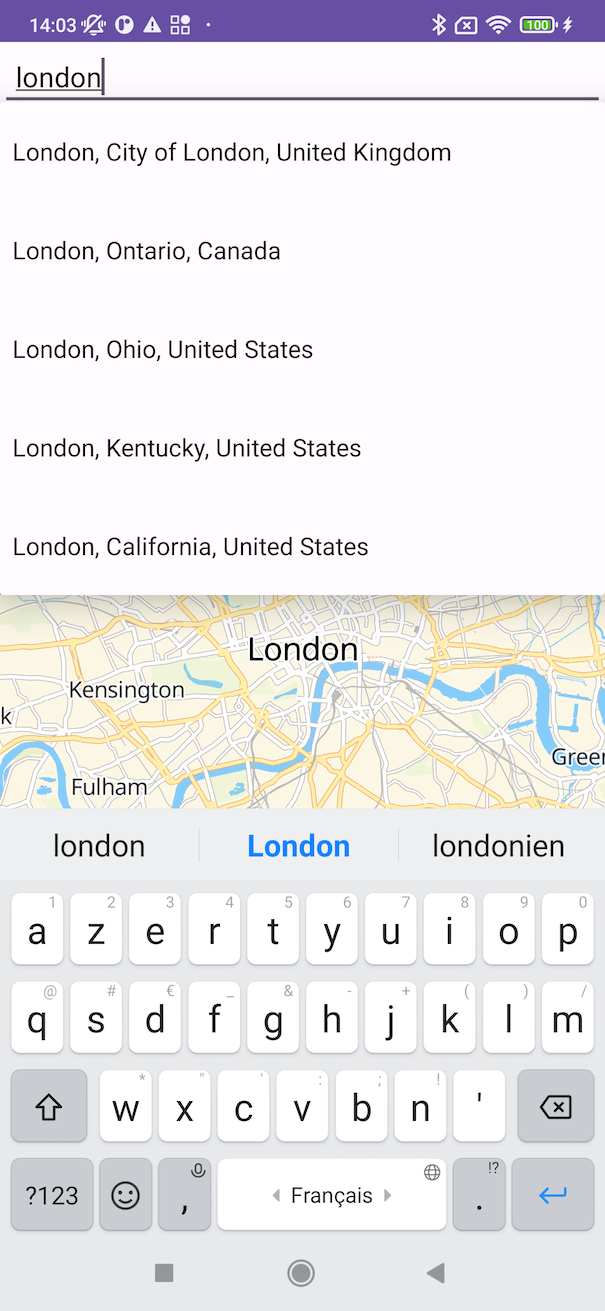
The first and easiest way to use Localities Autocomplete is to use the provided `LocalitiesAutocompleteTextView` widget.
It's built upon Android's `AutocompletTextView` and can be used with UI designed by the Layout Builder. You only need to
edit your layout XML to include it like so:
```xml
```
```xml
```
This will add an autocomplete text view that will automatically query `LocalitiesService` and display the autocomplete suggestion in a drop down.
You can customize some options directly in the XML if you want to tailor a bit more the results. In this example we set
the `type` of the query to be `locality`. You can set multiple values for it by separating them with a `|` character.
For example, you can customize it to look only for airports and train stations by using `app:woosmap_types="airport|train_station"`.
The default if none are specified are: `"locality|postal_code"`, for more information please refer to the [endpoint documentation](/products/localities/features/autocomplete/)
The full list of possible values is the following:
- locality
- postal_code
- admin_level
- airport
- train_station
- metro_station
- shopping
- museum
- zoo
- amusement_park
- art_gallery
- tourist_attraction
- country
- address
- route
Another customizable option is the language in which you wish the response to be returned.
You can set an alpha2 or alpha3 language code such as `app:woosmap_language="fr"` to have suggestions in French.
Quite often you will want to limit suggestions to selected countries, you can do so by using `components`.
For your convenience you can directly specify a list of alpha2 or alpha3 country codes separated by `|`.
Once the `LocalitiesAutocompleTextView` is configured in your layout you can use it in your view's code:
```kotlin
class MainActivity : AppCompatActivity() {
private lateinit var mapView: MapView
private lateinit var autoComplete: LocalitiesAutocompleteTextView
override fun onCreate(savedInstanceState: Bundle?) {
super.onCreate(savedInstanceState)
setContentView(R.layout.activity_main)
mapView = findViewById(R.id.mapView)
autoComplete = findViewById(R.id.autoComplete)
autoComplete.onLocalitiesSelected = { locality ->
val cameraUpdate = when {
locality.geometry.viewport != null -> {
CameraUpdate(bounds = locality.geometry.viewport)
}
else -> {
CameraUpdate(target=locality.geometry.location, zoom=10.0)
}
}
mapView.easeCamera(cameraUpdate)
mapView.requestFocus()
}
}
}
```
```java
public class MainActivity extends AppCompatActivity {
private MapView mapView;
private LocalitiesAutocompleteTextView autoComplete;
@Override
protected void onCreate(Bundle savedInstanceState) {
super.onCreate(savedInstanceState);
setContentView(R.layout.activity_main);
mapView = findViewById(R.id.mapView);
mapView.setZoomLevel(3);
mapView.setCenter(new LatLng(47.7724413, 12.4833043));
autoComplete = findViewById(R.id.autoComplete);
autoComplete.setOnLocalitiesSelected(locality -> {
CameraUpdate cameraUpdate;
if (locality.getGeometry().getViewport() != null) {
cameraUpdate = CameraUpdate.toBounds(locality.getGeometry().getViewport());
} else {
cameraUpdate = CameraUpdate.toTarget(locality.getGeometry().getLocation());
}
mapView.easeCamera(cameraUpdate);
mapView.requestFocus();
return null;
});
}
}
```
When the user clicks on an autocomplete suggestion a call to `LocalitiesService.getDetails` will automatically be made,
the response of which will be passed to your callback set on `onLocalitiesSelected`.
[LocalitiesAutocompleteTextView Reference Documentation](https://native-sdk.woosmap.com/android/doc/latest/woosmap-sdk/com.woosmap.sdk/-localities-autocomplete-text-view/index.html)
{:style="display:block; margin-left:auto; margin-right:auto; width: 300px;"}
### Using LocalitiesAdapter
If you need or want more control over the widget's behavior we also provide a pre-build `LocalitiesAdapter` that conforms
to the `Adapter` protocol of Android. It has all the options available to `LocalitiesService.autocomplete`
[LocalitiesAdapter Reference Documentation](https://native-sdk.woosmap.com/android/doc/latest/woosmap-sdk/com.woosmap.sdk/-localities-adapter/index.html)
### Using LocalitiesService
Of course, you can always integrate the service directly in your code if you wish so.
If you use the service directly make sure `Woosmap.initialize()` has been called first. There's no overhead to call it
multiple times.
`LocalitiesService` provides automatic serialization and deserialization of all requests and responses and will also take care of setting
the proper headers to authenticate your calls. However, since all calls will trigger network request make sure to invoke them
outside Android's UI thread.
```kotlin
class MyView(val context: Context, attrs: AttributeSet) : View(context, attrs) {
val localitiesService = LocalitiesService()
val someTextView: TextView
init {
Woosmap.initialize(context)
}
fun exampleOfLocalitiesAutocompleteQuery(input: String) {
thread {
localitiesService.autocomplete(input)?.let { suggestions ->
suggestions.forEach { println(it.description) }
post {
someTextView.text = suggestions.first().description
}
}
}
}
}
```
```java
class MyView extends View {
private LocalitiesService localitiesService = new LocalitiesService();
private TextView someTextView;
MyView(Context context, AttributeSet attrs) {
super(context, attrs);
Woosmap.initialize(context);
}
protected void exampleOfLocalitiesAutocompleteQuery(String input) {
new Thread(() -> {
List localities = localitiesService.localitiesAutocomplete(input);
localities.forEach(locality -> System.out.println(locality.getDescription()));
post(() -> {
if (localities.size() > 0) {
someTextView.setText(localities.get(0).getDescription());
}
});
});
}
}
```