Quickstart: Your First Stores API Call
Make your first server-side request to the Woosmap Stores REST API to search and filter on store data.
Let’s make your first API call. We’ll search for stores near a location, the basic workflow you’ll use in almost every implementation.
Set Up Demo Data
The fastest way to get started is to create a demo project directly in the Woosmap Console. No data file needed.
- Log in to the Woosmap Console
- Navigate to Use Cases & Products in the left sidebar
- Select the Store Locator from the Use Cases options
- Click the Create demo project button
This sets up a new project preloaded with Store locations, giving you real data to query right away.
If the Create demo project button is not visible, you may have already created a demo. Look for the existing demo project in your workspace.
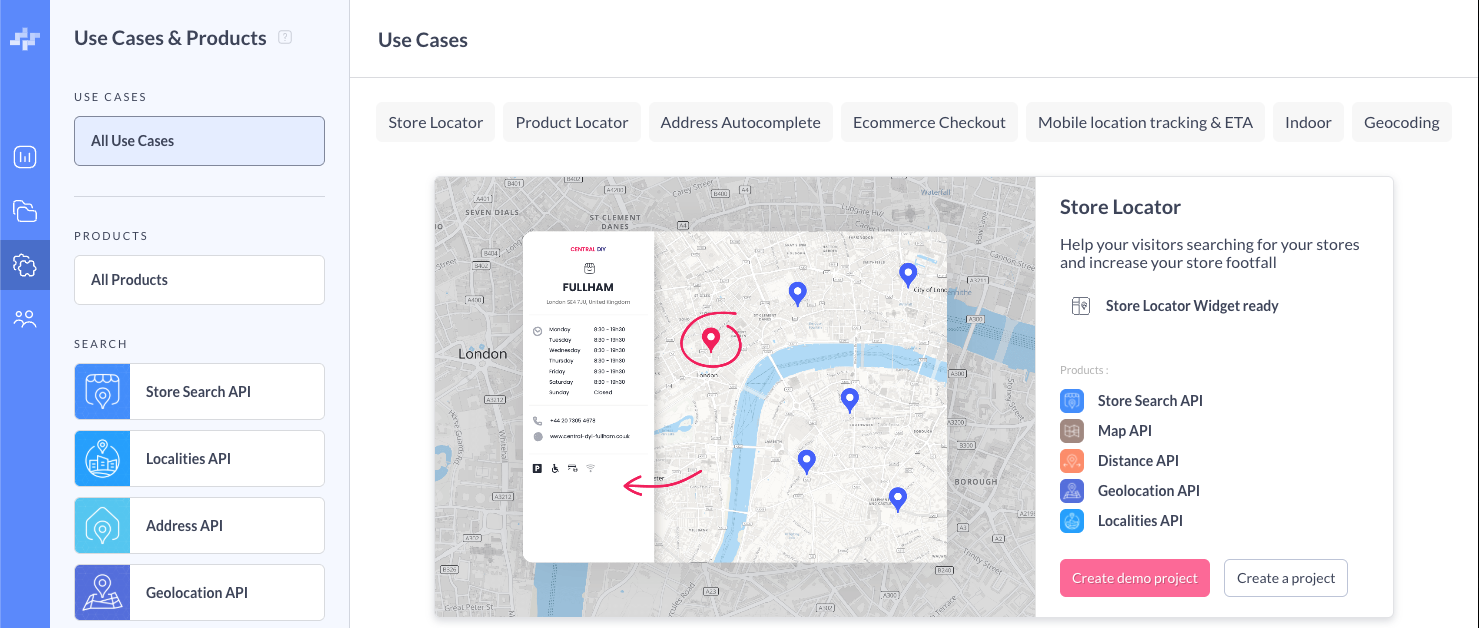
You can use the console to explore the created stores and view them on the map by navigating to the demo project.
What You Need
Your API key must belong to the demo project you just created — that’s where the store data lives. For this tutorial we’ll use a private key. Create the key in the demo project from the previous step.
You’ll also need cURL or any HTTP client (Postman, Insomnia, etc.).
Step 1: Search for Stores
Now we have stores in our demo project, and an API key, let’s make our first request.
Make a basic search request to retrieve your stores as GeoJSON:
curl 'https://api.woosmap.com/stores/search/?private_key=YOUR_PRIVATE_API_KEY'
Replace YOUR_PRIVATE_API_KEY with your actual key.
The result will be paginated as the demo data is quite large. Use page and stores_by_page query parameters to navigate
results (default is 100, max is 300).
Step 2: Filter by Location
Narrow results to stores near a specific location by adding lat, lng, and radius parameters. Since the sample
dataset contains stores all over the world, let’s focus on London:
curl 'https://api.woosmap.com/stores/search/?private_key=YOUR_PRIVATE_API_KEY&lat=51.5074&lng=-0.1278&radius=5000'
This returns stores within 5 km of central London.
Step 3: Search by Attributes
Use the query parameter to filter stores by their properties.
curl 'https://api.woosmap.com/stores/search/?private_key=YOUR_PRIVATE_API_KEY&query=type:brand_reseller'
This returns stores of the type brand_reseller.
Step 4: Combine Filters
You can combine location and attribute filters in a single request. Use AND to chain multiple query conditions together:
curl 'https://api.woosmap.com/stores/search/?private_key=YOUR_PRIVATE_API_KEY&lat=48.8566&lng=2.3522&radius=5000&query=type:brand_reseller+AND+tag:schedule_a_demo'
This returns brand_reseller stores tagged with schedule_a_demo within 5 km of central Paris. For the full query
syntax including OR and NOT operators, see Query Syntax and the
Search Endpoint reference.
What’s Next
Now you have an idea of how the Stores API works, how can you integrate it into your project?
- Read the Integration Path Guide to choose the best approach for your project
- Try Autocomplete Search for full-text search on localized names
Or try these interactive code examples: