Get Started
Get started with the Woosmap Indoor API. Try our interactive demo, view simple examples, and learn how to create custom indoor maps for your site.
Try It Now - Demo Playground
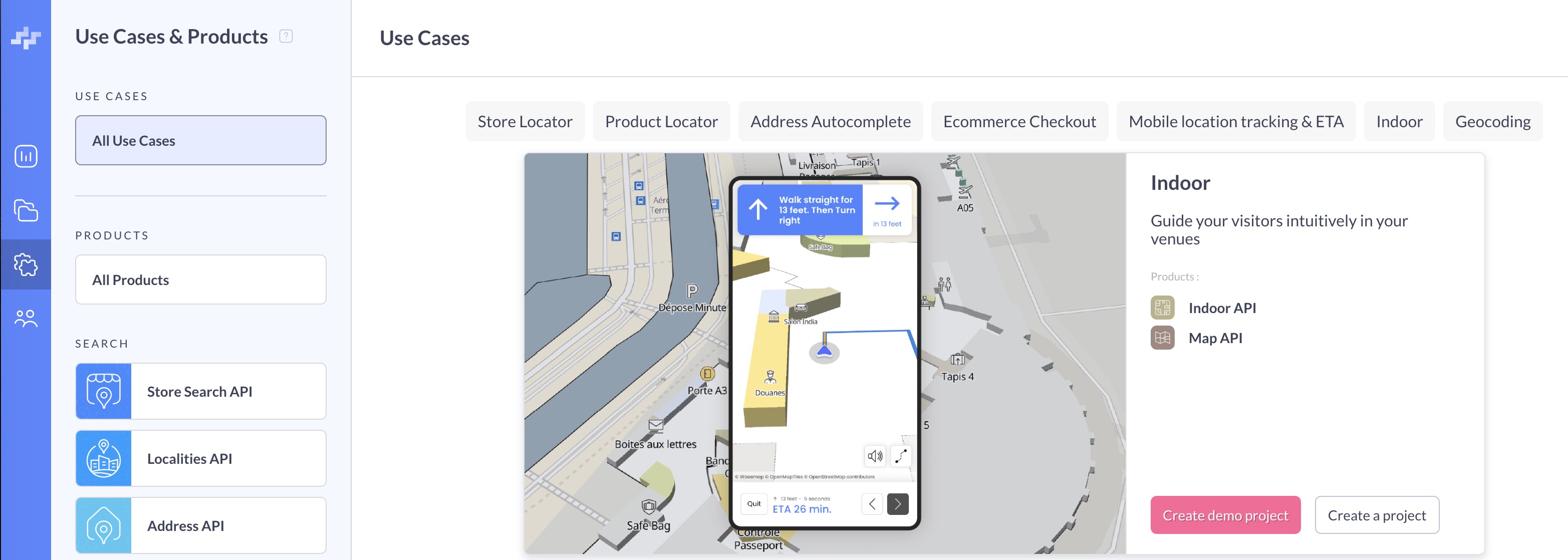
The fastest way to explore the Indoor API is to create a demo project directly in the Woosmap Console. No venue data or setup required!
- Log in to the Woosmap Console
- Navigate to Use Cases & Products in the left sidebar
- Select the Indoor tab from the Use Cases options
- Click the Create demo project button
This will automatically set up a new project with a pre-configured indoor map that you can use as a playground to explore Indoor API features, including indoor navigation, POI search, and wayfinding capabilities.
If the Create demo project button is not visible, you may have already created a demo. Look for the “Indoor Demo” project in your workspace.
Quick Start Example
Here’s a simple example to display an indoor map using the Map JS API with the demo venue:
        let map: woosmap.map.Map;

function initMap() {
  map = new window.woosmap.map.Map(
    document.getElementById("map") as HTMLElement,
    {
      center: { lat: 43.6066, lng: 3.9218 },
      zoom: 19.5,
    },
  );

  const indoorRenderer = new woosmap.map.IndoorRenderer({
    venue: "wgs_doc",
    defaultFloor: 3,
  });

  // Indoor event that is triggered when the indoor venue is loaded.
  indoorRenderer.addListener(
    "indoor_venue_loaded",
    (venue: woosmap.map.Venue) => {
      console.log(venue);
      hideLoader();
    },
  );
  indoorRenderer.setMap(map);
}

const hideLoader = () => {
  (document.querySelector(".progress") as HTMLElement).remove();
};

declare global {
  interface Window {
    initMap: () => void;
  }
}
window.initMap = initMap;
        let map;

function initMap() {
  map = new window.woosmap.map.Map(document.getElementById("map"), {
    center: { lat: 43.6066, lng: 3.9218 },
    zoom: 19.5,
  });

  const indoorRenderer = new woosmap.map.IndoorRenderer({
    venue: "wgs_doc",
    defaultFloor: 3,
  });

  // Indoor event that is triggered when the indoor venue is loaded.
  indoorRenderer.addListener("indoor_venue_loaded", (venue) => {
    console.log(venue);
    hideLoader();
  });
  indoorRenderer.setMap(map);
}

const hideLoader = () => {
  document.querySelector(".progress").remove();
};

window.initMap = initMap;
        /*
 * Always set the map height explicitly to define the size of the div element
 * that contains the map.
 */
#map {
  height: 100%;
}

/*
 * Optional: Makes the sample page fill the window.
 */
html,
body {
  height: 100%;
  margin: 0;
  padding: 0;
  font-family: ui-sans-serif, system-ui, -apple-system, BlinkMacSystemFont, Segoe UI, Roboto, Helvetica Neue, Arial, Noto Sans, sans-serif, Apple Color Emoji, Segoe UI Emoji, Segoe UI Symbol, Noto Color Emoji;
}

#app {
  height: 100%;
}

.progress {
  position: fixed;
  top: 0;
  left: 0;
  width: 100%;
  height: 100%;
  background: white;
  display: flex;
  justify-content: center;
  align-items: center;
  z-index: 9999;
}
.progress .spinner {
  border: 10px solid #f3f3f3;
  border-top: 10px solid #444444;
  border-radius: 50%;
  width: 70px;
  height: 70px;
  animation: spin 1s linear infinite;
}
        <html>
  <head>
    <title>Indoor Map Renderer</title>
    <meta name="viewport" content="width=device-width, initial-scale=1.0" />
    <meta charset="utf-8" />

    <link rel="stylesheet" type="text/css" href="./style.css" />
    <script type="module" src="./index.js"></script>
  </head>
  <body>
    <div id="app">
      <div class="progress">
        <div class="spinner"></div>
      </div>
      <!--The div element for the map -->
      <div id="map"></div>
    </div>

    <script
      src="https://sdk.woosmap.com/map/map.js?key=woos-e1e5490b-19d1-34f8-9955-fd5cfc8c880f&callback=initMap"
      defer
    ></script>
  </body>
</html>
Sample Code
Try these interactive examples:
- CodeSandbox Demo
- JSFiddle Example
- GitHub Samples
- React Native - @woosmap/react-native-woosmap
- Flutter - woosmap_flutter
Integration Options
The Indoor API can be integrated in several ways:
- Indoor JS Widget: Pre-built UI component for quick integration
- Map JS API: Recommended for web applications with the
IndoorRendererandIndoorServiceclasses - Mobile SDKs: Native libraries for iOS (Swift), Android (Kotlin/Java), React Native, and Flutter
- REST API: Direct HTTP requests for maximum flexibility
Next Steps
Once you’ve explored the demo, see Using the API with Your Own Venues for steps on obtaining credentials, authenticating requests, and connecting to your own venue data.